Network Filter vs Software on Every Device: Which One Covers Your Whole Site?
There are two places to put a web filter. You can filter at the network, with one DNS setting on the router at each site, or you can install software on every computer and phone you manage. Both block websites by category. They differ in which devices they reach, how much work they create for a small IT team, how the cost grows and how easy they are to switch off. This guide compares them for offices, libraries, schools and the IT providers who look after them.
Filter on the network
One DNS setting on the router or firewall at each site. Everything that joins the network follows the same rules.
- Every device on site, guest Wi-Fi included
- Nothing installed on any device
- Priced per site
Software on each device
An agent or profile on every device you own. It filters that device and nothing else.
- Follows the device wherever it goes
- Installed and kept running on each one
- Priced per device, per year
If people bring their own devices, only the network reaches them
If staff, visitors, patrons or students bring their own phones, tablets and laptops onto your Wi-Fi, only a network filter reaches them. If your devices spend most of their time away from your sites, they need something on the device. Most organisations have both kinds of device, so the practical answer is usually a network filter for every site plus a light link on the laptops that leave.
Reach
A network filter sees every device on the connection, owned or not. Device software sees only the machines it is installed on.
Upkeep
One router setting per site, against an install, an update and a check on every device, repeated after each rebuild or replacement.
Cost model
Device software is licensed per device, per year. A network filter is priced per site, so a busier Wi-Fi costs nothing extra.
Tamper resistance
There is nothing on a guest's phone to switch off. An agent can be stopped or removed by anyone with enough rights on the device.
Where the allow or block decision is made
Every web filter does the same basic job. It takes the name of the site someone wants to open, looks it up in a URL category database, and allows or blocks it according to your policy. The two approaches differ in where that lookup happens and which devices pass through it.
Network filter
Every website visit starts with a DNS lookup of the site's name. Your router sends those lookups to the hosted filter, which checks the name against its category data and your own lists, and answers before the page starts to load. The device needs no software and no settings of its own, which is why a visitor's phone is covered the moment it joins.
Software on each device
An agent on the device watches its traffic. It either carries a copy of a category list on the device, or sends each site name to the vendor's service for a verdict. Only the devices with the agent installed and running are part of the system, and each one has to be enrolled, updated and checked.
How each approach handles the situations you meet every day
The rows below follow a typical week at an office, a library or a school. The tags give the short verdict; the text says what actually happens.
| Situation | Network filter (our hosted filter) | Software on each device |
|---|---|---|
| Computers you own | CoveredEvery computer on the network, with nothing installed | CoveredWhile the software is installed and running |
| Staff and visitors' own phones on Wi-Fi | CoveredFrom the moment they join the network | Not coveredYou cannot install software on a device you do not own |
| Guest and public Wi-Fi | CoveredWith its own rules if you register it as a separate network | Not coveredA second product is needed for it |
| Smart TVs, game consoles, e-readers | CoveredThey look up site names like any other device | Usually notMost have no version of the software |
| A brand new device | CoveredAs soon as it joins | LaterAfter someone installs and enrols the agent |
| A rebuilt or replaced machine | CoveredNothing to redo | LaterOpen until the agent is installed again |
| Setup | Once per siteOne DNS setting on the router or firewall | Per deviceInstall or push a profile to every device you own |
| A policy change | SecondsLive for every device on the network almost at once | VariesReaches each device when it next checks in |
| Switching it off | HardNothing on the device to stop or remove | PossibleA user with enough rights can stop or uninstall it |
| Common workarounds | BlockedVPN and proxy sites and public encrypted lookup services, for every device | DependsOn the product, and devices without the agent stay open |
| Laptops that leave the building | CoveredWith the private encrypted link to the same filter | CoveredWherever the device goes |
| Detail inside a site | Site levelDecides by the site's name, not by single page or video | VariesSome products see more detail on the device |
| Records | Per networkActivity log, monthly reports per site, policy record | Per deviceActivity for the devices that report in |
| Cost basis | Per siteThe same price however many devices join | Per deviceEvery device, every year |
Count the devices before you count the licences
Per-device licences look small one at a time. The number that decides the real cost is how many devices use your network on a busy day, and how many of those you could ever install software on. The examples below show the arithmetic for typical sites. They are illustrations, not survey data.
| Site | Devices you own | Devices you do not own, on a busy day | Software on each device | Network filter |
|---|---|---|---|---|
| Small office | 20 laptops and desktops | 30 to 50 staff phones, plus visitors and contractors | 20 licences; phones and guests stay open | 1 site |
| Branch library | 15 public and staff computers | 100 to 300 patron phones and laptops | 15 licences; the Wi-Fi stays open | 1 site |
| School | 400 school laptops | Staff phones, guest devices, often student phones | 400 licences, renewed every year | 1 site, plus the encrypted link on take-home laptops |
| Community centre or nonprofit | 6 computers | Visitors on the public Wi-Fi | 6 licences; public Wi-Fi open | 1 site |
| IT provider | 900 managed devices at 30 client offices | Every guest and personal device at each client | 900 agents to deploy and keep running | 30 sites in one console |
Three costs that never appear on a licence quote
Staff time
Someone installs the agent, enrols it in the right group and checks that it is still running. For a team of one or two, that time comes out of everything else.
Devices that go quiet
Agents fail after updates, rebuilds and disk swaps, and a device that stops reporting looks the same as a device that is fine. Each one is a gap until someone notices.
A second product
Because device software cannot reach guest and personal devices, many sites end up buying a network filter for the Wi-Fi as well, and running two policies side by side.
What it takes to get each one running, and keep it running
The difference in effort is easy to underestimate. A network filter is a site-level change made once. Device software is a project per device that never quite ends, because devices keep arriving, leaving and being rebuilt.
- Register each siteWe add the public IP address of each site to your account, so the filter answers your networks and nobody else's.
- Change one settingSet the two DNS addresses we give you, main and backup, on the router or firewall at each site.
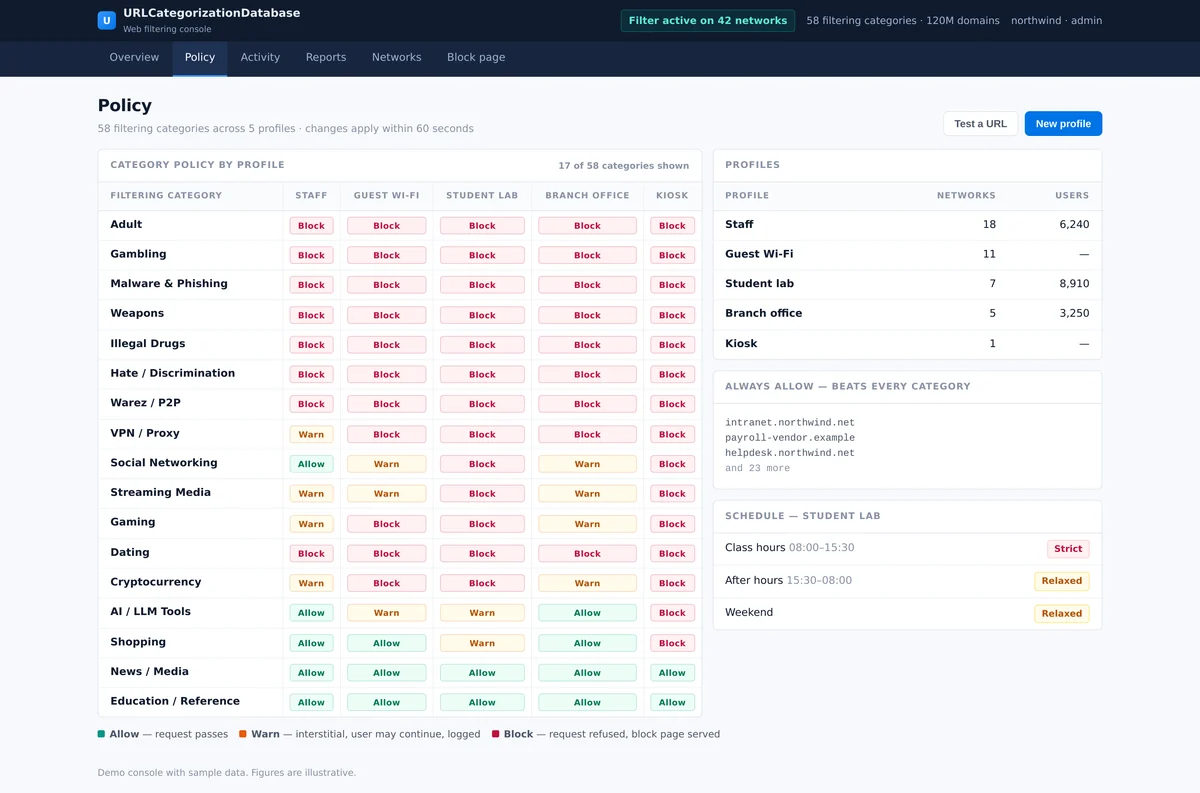
- Choose the rulesSwitch categories on or off for each network, pick an AI tools setting and add your always-allow and always-block lists.
- Done for every deviceNew phones, rebuilt laptops and visitors' tablets follow the rules without anyone touching them.
- Count and licenseList every device you own and buy a licence for each, with room for the ones you will add this year.
- Install everywhereInstall or push the agent to every device, for every type of device and system version you run.
- Enrol and groupPut each device in the right policy group, and keep the groups in step with staff changes.
- Chase the gapsFind the devices that stopped checking in, reinstall after every rebuild, and repeat for every new hire and replacement.
To see what a site will be blocked for before you set any rule, look it up with the domain category check.
How each one holds up when someone tries to get around it
A filter is only as good as the easiest way past it. These are the routes people try most often, and what happens with each approach.
VPN and proxy sites
On the network, VPN and proxy sites are blocked by category for every device. With device software, they are blocked only on devices that have the agent.
Lookups that skip the filter
Public encrypted lookup services are blocked, and the browsers' own encrypted lookup and private relay features are switched off for the network, so lookups cannot quietly go elsewhere.
Switching the filter off
A network filter has nothing on the device to stop. An agent can be stopped or uninstalled by a user with administrator rights, or by starting the machine another way.
Bringing another device
A phone brought from home is filtered the moment it joins your Wi-Fi. With device software, the same phone is simply open.
Mobile data
A phone that switches to its own mobile data leaves your network, and no network filter sees it. For phones you own, the encrypted link or an agent covers that. For phones you do not own, neither approach does.
Legitimate exceptions
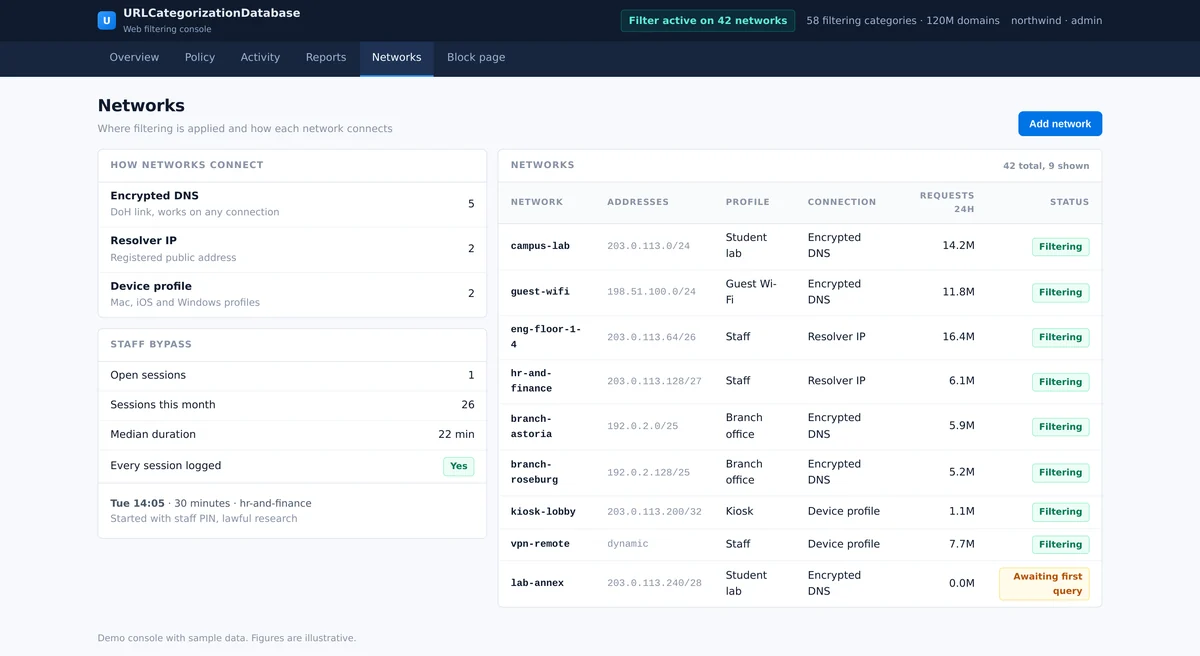
Staff enter a PIN to open adult content for 15, 30 or 60 minutes for research. It closes by itself, every use is logged, and proxy tools and your own block list stay blocked.
One AI tools setting for every device on the network
AI chat, writing and image tools are where policies change fastest. With a network filter, an AI decision applies to every device on the network at once, including the phones that will never run your software. The hosted filter treats AI tools as their own layer on top of the category rules.
11,800+ AI tools in 19 types
Each AI tool is sorted into a type, such as chat assistants or image generators, so you can make a rule for a whole type at once.
A setting per profile
Choose Off, Block all AI, K-12 students, Library children's area or Library adults for each network, and adjust from there.
Per type and per tool
Allow or block a whole type, or search for a single tool and allow or block just that one.
Tools that train on input
One switch blocks the tools that train on what users type, which matters for staff who handle private or client information.
AI tools used report
See which AI tools were used on each network, and block any of them with one click.
For data buyers
The same AI tool data is available for your own products. See the K-12 AI tools dataset.
Where software on the device still earns its place
Device software is not the wrong choice everywhere. It fits devices that spend most of their life away from your sites. The usual answer is not one or the other, but the network for every site and a light link for the devices that leave.
- Laptops go home every night or work mainly from other networks
- Staff travel and connect from hotels and public Wi-Fi
- You need rules that follow a signed-in person rather than a network
- Phones you own spend most of the day on mobile data
- A private encrypted link sends a laptop's lookups to the same filter, with the same rules, wherever it is
- The link is managed from the same dashboard as your sites
- Combine it with your device management so users cannot remove it
- Different groups get their own profiles, such as staff, public computers, a children's area and guest Wi-Fi
What a network filter will not do
Knowing the limits up front saves surprises during a pilot. These apply to DNS filtering in general, not only to ours.
Site level, not page level
It allows or blocks a whole site, not a single page or video. Your always-allow list keeps a needed site open whatever its category.
Browser warnings
On encrypted sites, a blocked page shows a browser warning instead of the site. That is how DNS filters behave.
A router you can set
You need a router or firewall where the DNS server can be set, ideally with a fixed public IP. If not, the encrypted link works per device.
Not a monitoring tool
It does not record screens or keystrokes and is not a classroom management tool. It keeps a log of lookups for your records.
Eight questions to answer before you pick an approach
Put these to your own team first, then to any vendor you talk to. The answers show quickly which approach fits, and what you would be paying for.
And how many of those do we own? The gap is what device software cannot reach.
If yes, the Wi-Fi needs a network filter whatever else you run.
And how long is that device open before they do?
Ask whether you are told, and how fast.
A filter that can be skipped by changing one setting is not doing its job.
Separate networks or groups with their own profile keep each policy simple.
Activity reports, a policy record and a log of staff exceptions answer most requests.
Those are the only ones that need something installed on them.
Moving from device software to a network filter
Most teams switch site by site, and keep the agent only on the devices that still need it. A pilot lets you see the filter on your own network before you decide, and we test on a staff machine first, so the public is never the first to notice a change.
List sites
Note each site, its networks and how it connects to the internet.
Start a pilot
We register one or two sites and apply a starting profile.
Test one machine
A staff computer uses the encrypted link first, so you can try blocked and allowed sites.
Bring your lists
Import your old allow and block lists as a plain list, hosts file or CSV.
Switch the router
Change the DNS setting, and every device on that network is filtered.
Review and decide
Look at the reports together, then add sites, adjust rules or stop.
Network filter vs device software: frequently asked questions
Does a network filter cover the phones and laptops that visitors bring?
Yes. Every device that joins the network sends its lookups through the filter, so it follows your rules from the first page, with nothing installed on it. Software on your own computers cannot reach a device you do not own.
Does a network filter work on encrypted (HTTPS) websites?
Yes. The filter decides on the site's name before the encrypted connection starts, so encrypted and unencrypted sites are treated the same way. When an encrypted site is blocked, the browser shows a warning page instead of the site, which is how DNS filters behave.
Can people get around a network filter with a VPN?
VPN and proxy websites are blocked, and so are the public encrypted lookup services a device could use instead of the filter. The browsers' own encrypted lookup and private relay features are switched off for the network.
What about laptops that leave the building?
Add the private encrypted link to them. It sends their lookups to the same filter with the same rules wherever they are, and you manage it from the same dashboard. Combine it with your device management so users cannot remove it.
What about phones that use mobile data instead of the Wi-Fi?
A phone on its own mobile data is not on your network, so no network filter sees it. For phones you own, the encrypted link or device software covers that case. For phones you do not own, neither approach reaches mobile data.
Can staff, guests and children follow different rules?
Yes. Register each network separately, such as staff, public computers, a children's area and guest Wi-Fi, and give each one its own profile with its own categories, AI tools setting and lists.
Do we need new hardware?
No. You need a router or firewall where you can set the DNS server, ideally with a fixed public IP address. Where that is not possible, devices can use the private encrypted link to the same filter.
What happens if a filter server goes down?
The hosted filter runs on a main and a backup server. Your router is given both addresses, so lookups move to the backup without any change on your side.
Can an IT provider run it for many clients?
Yes. Each client site is registered with its own networks, policies, lists and staff PIN, and all of them are managed from one console, with no agents to deploy at client sites.
How do we try it, and what happens if we stop?
We set up a pilot on one or two sites. Email [email protected] with the number of sites you have. To stop, change the DNS setting on your router back to what it was, and filtering ends at once.
Filter every device on your network
One DNS setting per site covers your computers, staff phones, guest Wi-Fi and every device a visitor brings. Tell us how many sites you have and what runs on each one, and we will reply with a pilot plan for one or two of them.